> ## Documentation Index
> Fetch the complete documentation index at: https://guide.getkroo.com/llms.txt
> Use this file to discover all available pages before exploring further.
# SQL Views and Basics
> Complete guide to SQL views in Kroo: from basic concepts to advanced cross-system reporting with best practices and real-world examples.
## Overview
SQL views are the backbone of effective data analysis in Kroo. They transform raw, messy tables into structured, standardized, business-ready datasets that anyone can query. This comprehensive guide covers everything from basic concepts to advanced implementation strategies.
## What Is a SQL View?
A **SQL View** is a saved query that turns raw, messy tables into a structured, standardized, business-ready dataset inside your Kroo Warehouse. Instead of rewriting the same joins and filters, a view stores the logic as a virtual table that anyone can query.
**Think of it like a recipe:** The raw ingredients (tables) are available in your warehouse, but the view is the finished dish—measured, mixed, and ready to serve.
### Views Can:
* **Select only the fields you care about** - No more overwhelming spreadsheets
* **Aggregate values** (SUM, AVG, COUNT, etc.) to roll data up to the right level
* **Join across tables** to connect information that lives in different places
### Where Views Can Be Used
**Shape a single system into clean tables**
Example: Transform Procore data into clean tables for RFIs, Submittals, and Change Orders
```sql theme={null}
CREATE VIEW kroo_procore_reporting.clean_rfis AS
SELECT
rfi_id,
project_name,
CASE WHEN status = 'O' THEN 'Open'
WHEN status = 'C' THEN 'Closed'
END AS rfi_status
FROM kroo_procore.rfis
WHERE _fivetran_deleted = 0 -- Essential filter for all Kroo queries
```
**Unite multiple systems for comprehensive insights**
Example: Join Procore + Viewpoint Vista to create unified project financial view
```sql theme={null}
CREATE VIEW kroo_reporting.project_financial_unified AS
SELECT
p.project_name,
p.total_contract_value,
v.jtd_cost
FROM kroo_procore.projects p
LEFT JOIN kroo_viewpoint_vista.jcjm v
ON p.project_number = v.job
```
**Views act as the glue between systems,** turning siloed construction data into a single source of truth.
## Why Views Matter in Kroo
**Abstract away technical details**
* Users don't need to know which raw tables to query
* Logic is centralized and reusable
* Reduces learning curve for analysts
**Standardize business definitions**
* How Committed Cost is calculated
* How Percent Complete is defined
* Every report uses the same logic
**Optimize query execution**
* Predefined logic reduces repeated heavy queries
* Streamlines dashboard refreshes
* Better resource utilization
**Connect to any tool instantly**
* Power BI, Tableau, Kroo Data Visualizer
* End-users see insights, not raw data
* Self-service analytics enabled
## Advantages of Using Views
### 1. Data Customization
Translate raw system codes into business-friendly values that make sense to your team.
```sql theme={null}
CASE WHEN status = 'IA' THEN 'Invoice Approved'
WHEN status = 'P' THEN 'Pending Review'
WHEN status = 'R' THEN 'Rejected'
END AS invoice_status
```
**Business Value:** Views eliminate the need to remember cryptic system codes and provide consistent, readable data across all reports.
### 2. Data Aggregation
Summarize key numbers once and standardize calculations across your organization.
```sql theme={null}
SELECT
DATEPART(month, invoice_date) AS month,
SUM(contract_value)
+ SUM(change_orders)
- SUM(costs) AS net_value
FROM kroo_procore.invoices
WHERE invoice_date BETWEEN '2025-09-01' AND '2025-09-30'
AND _fivetran_deleted = 0 -- Always filter deleted records
GROUP BY DATEPART(month, invoice_date)
```
**Standardized calculations**
* Single source of truth for metrics
* Eliminates calculation errors
* Ensures consistent reporting
**Compute once, use everywhere**
* Reduces query complexity
* Improves report performance
* Simplifies downstream analysis
### 3. Cross-System Reporting
Merge operational project data from Vista with financials from Procore for comprehensive insights.
```sql theme={null}
SELECT v.job, p.project_name, p.total_contract_value,
v.jtd_cost
FROM kroo_viewpoint_vista.jcjm v
LEFT JOIN kroo_procore.projects p
ON v.job = p.project_number
```
**Integration Power:** Views enable seamless data integration between different construction management systems, providing a unified view of project performance.
## How Views Fit in Your Data Architecture
Views act as the critical bridge in your Kroo data pipeline, connecting your warehouse schemas to visualization tools:
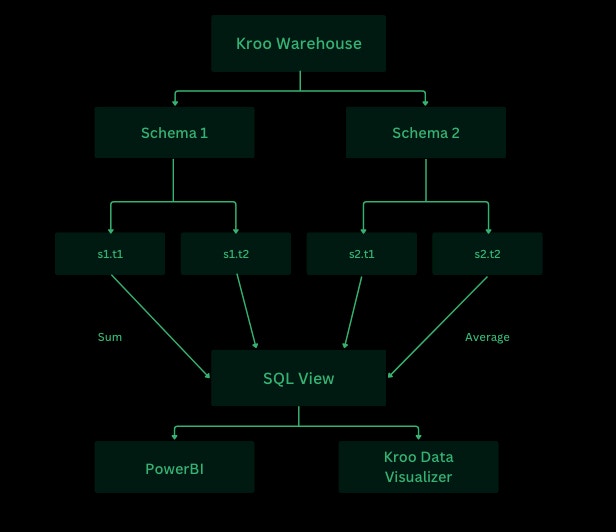 **Key Insight:** Views aggregate data from multiple schemas (s1.t1, s1.t2, s2.t1, s2.t2) using functions like SUM and AVG, then feed clean, business-ready datasets directly to your visualization tools like Power BI and Kroo Data Visualizer.
## Essential Kroo Query Requirements
**Critical:** Every Kroo query MUST include `WHERE _fivetran_deleted = 0` to filter out soft-deleted records. This is essential for accurate data and is required in all production views.
### The `_fivetran_deleted` Filter Explained
Kroo uses soft deletes to maintain data integrity. When records are "deleted" in source systems, they're marked with `_fivetran_deleted = 1` rather than being physically removed. Always filter these out:
```sql theme={null}
-- ✅ Correct - Always include this filter
SELECT project_name, contract_amount
FROM kroo_procore.projects
WHERE _fivetran_deleted = 0
-- ❌ Wrong - Will include deleted records
SELECT project_name, contract_amount
FROM kroo_procore.projects
```
### Understanding Internal Metadata Columns
**Important:** Any column in the Kroo warehouse starting with an underscore (`_`) is internal metadata added by Kroo's data pipeline. These fields **did not come directly from your source system**.
**Common Internal Metadata Columns to Avoid:**
* **`_partner_id`** - Internal identifier used by Kroo's sync system (do not use in queries)
* **`_data_type`** - Internal classification for pipeline processing (do not use in queries)
* **`_fivetran_synced`** - Timestamp of last sync operation
**Exception:** The `_fivetran_deleted` field is the only internal metadata column you should actively use in your queries - it's required to filter out soft-deleted records.
**Best Practice:** When selecting columns for your views, focus on business data from your source systems and avoid internal metadata columns (except for the `_fivetran_deleted` filter in WHERE clauses).
## SQL Query Building Blocks
Understanding the core SQL components will help you build effective views. Think of these as the essential ingredients in your data recipe.
### The Core Building Blocks
Choose the columns and metrics you need for your analysis
```sql theme={null}
SELECT project_id, SUM(contract_amount) AS total_contract
```
Specify the source table(s) containing your data
```sql theme={null}
FROM kroo_procore.change_orders
```
Link tables together to combine related information
**Common Join Types:**
* `INNER JOIN` → Only matches
* `LEFT JOIN` → Keep all from left + matches on right
* `FULL OUTER JOIN` → Everything, matched or not
```sql theme={null}
LEFT JOIN kroo_procore.projects p
ON co.project_id = p.procore_id
```
Filter rows to include only the data you need
```sql theme={null}
WHERE status = 'Approved' AND _fivetran_deleted = 0
```
Aggregate data into meaningful categories
```sql theme={null}
GROUP BY project_id
```
Organize output in a logical sequence
```sql theme={null}
ORDER BY total_contract DESC
```
### Complete View Example
Here's how all the pieces come together in a real view:
```sql theme={null}
CREATE OR REPLACE VIEW
kroo_procore_reporting.vw_project_change_order_summary AS
SELECT
p.project_id,
p.project_name,
COUNT(co.procore_id) AS change_order_count,
SUM(co.contract_amount) AS total_contract_amount
FROM kroo_procore.change_orders co
JOIN kroo_procore.projects p
ON co.project_id = p.procore_id
WHERE co.status = 'Approved'
AND co._fivetran_deleted = 0
GROUP BY p.project_id, p.project_name
ORDER BY total_contract_amount DESC;
```
## Best Practices
### A. Query Writing & Readability
Follow these formatting rules for maintainable code:
* Use **uppercase SQL keywords** (SELECT, JOIN, WHERE)
* **Indent and line-break** for clarity
* **Avoid SELECT \*:** Specify exact columns
* **Meaningful aliases:** Use short but clear names (p for projects, not x)
* **Comment business logic:** Document filters and calculations
**Example of Well-Formatted Query:**
```sql theme={null}
SELECT
p.project_id,
p.project_name,
i.invoice_amount
FROM kroo_procore.projects p
JOIN kroo_procore.invoices i
ON p.project_id = i.project_id
-- Only include approved invoices
WHERE i.status = 'Approved'
```
### B. Performance & Efficiency
Apply WHERE clauses before joins when possible to reduce data processing
Use numeric IDs or surrogate keys, not text fields for better performance
Perform aggregations in SQL rather than repeatedly downstream
**Performance Example:**
```sql theme={null}
SELECT
p.project_id,
SUM(i.invoice_amount) AS total_invoices
FROM kroo_procore.projects p
JOIN kroo_procore.invoices i
ON p.project_id = i.project_id
WHERE i.status = 'Approved'
GROUP BY p.project_id
```
**Avoid This:** Don't join on Project\_Name → Join on Project\_ID instead for optimal performance.
### C. Data Integrity & Accuracy
Ensure your views produce reliable, accurate results:
Use DISTINCT or proper grouping to prevent duplicate records:
```sql theme={null}
SELECT DISTINCT project_id, project_name
FROM kroo_procore.projects
```
Apply COALESCE or ISNULL to handle missing values:
```sql theme={null}
SELECT
project_id,
COALESCE(SUM(invoice_amount), 0.00) AS total_invoices
FROM kroo_procore.invoices
GROUP BY project_id
```
Use appropriate data types for different value types:
* **Decimals** for monetary values
* **Integers** for counts
* **Dates** for timelines
### D. Naming & Organization
**Use descriptive names**
* `project_financial_summary` ✅
* `pfs` ❌
**Organize by purpose**
* System-specific views: `kroo__reporting`
* Cross-system views: `kroo_reporting`
**Naming Example:**
```sql theme={null}
CREATE VIEW kroo_reporting.project_financial_summary AS
SELECT ...
```
## Where to Create Views
Choose the right location based on your view's purpose and lifecycle:
**Temporary views for SSMS testing**
* Use for development and experimentation
* Delete after testing is complete
**Save in correct schema for permanent use**
* `kroo__reporting` for system-specific views
* Example: `kroo_procore_reporting`, `kroo_p6_reporting`
**Place under kroo\_reporting for integration views**
* Combines data from multiple source systems
* Accessible across different schemas
**Schema Creation Example:**
```sql theme={null}
CREATE SCHEMA kroo_p6_reporting;
GO
CREATE VIEW kroo_p6_reporting.p6_cmic_summary AS
SELECT ...
```
**Organization Tip:** Consistent schema organization makes it easier for your team to find and maintain views over time.
## Connecting to Your Data Warehouse
Once your views are created, you can connect to them using various tools. Here's how to access your Kroo warehouse:
### Connection Setup
In your Kroo dashboard, click on the **Infrastructure** tab to see your available resources
Find your **Azure SQL Warehouse** (status will show as "Running") and click **Connection details**
When connecting via SQL Server Management Studio or similar tools, use these settings:
**Login Tab:**
* **Server type:** Database Engine
* **Server name:** Your provided server name (format: `kroo-sql-[identifier].database.windows.net`)
* **Authentication:** SQL Server Authentication
* **Login:** Your provided login credentials
* **Password:** Your provided password
* ☑️ **Remember password** (optional)
**Connection Properties Tab:**
* **Connection Security:** Mandatory
* **Encryption:** Mandatory
* ☑️ **Trust server certificate**
Use these same connection details in Power BI, Tableau, or other BI tools to access your views directly
**Connection String Format:** Your server name will typically follow the pattern `kroo-sql-[unique-identifier].database.windows.net` - use exactly as provided in your connection details.
## Advanced View Patterns
### Monthly Financial Summaries
Create rolling monthly reports with standardized date handling:
```sql theme={null}
CREATE VIEW kroo_reporting.monthly_financial_summary AS
SELECT
YEAR(invoice_date) AS year,
MONTH(invoice_date) AS month,
DATENAME(MONTH, invoice_date) AS month_name,
SUM(contract_value + ISNULL(change_orders, 0)) AS gross_revenue,
SUM(costs) AS total_costs,
SUM(contract_value + ISNULL(change_orders, 0) - costs) AS net_margin
FROM kroo_procore.invoices
WHERE _fivetran_deleted = 0
GROUP BY YEAR(invoice_date), MONTH(invoice_date), DATENAME(MONTH, invoice_date)
```
### Project Health Dashboard
Combine multiple metrics into a single project health view:
```sql theme={null}
CREATE VIEW kroo_reporting.project_health_dashboard AS
SELECT
p.project_id,
p.project_name,
p.project_status,
COALESCE(SUM(co.contract_amount), 0) AS total_change_orders,
COUNT(CASE WHEN rfi.status = 'Open' THEN 1 END) AS open_rfis,
DATEDIFF(DAY, p.start_date, GETDATE()) AS project_age_days,
CASE
WHEN COUNT(CASE WHEN rfi.status = 'Open' THEN 1 END) > 5 THEN 'High Risk'
WHEN COUNT(CASE WHEN rfi.status = 'Open' THEN 1 END) > 2 THEN 'Medium Risk'
ELSE 'Low Risk'
END AS risk_level
FROM kroo_procore.projects p
LEFT JOIN kroo_procore.change_orders co ON p.procore_id = co.project_id
LEFT JOIN kroo_procore.rfis rfi ON p.procore_id = rfi.project_id
WHERE p._fivetran_deleted = 0
GROUP BY p.project_id, p.project_name, p.project_status, p.start_date
```
## Troubleshooting Common Issues
**Common Causes:**
* Missing schema permissions
* Invalid table references
* Forgot `_fivetran_deleted = 0` filter
* Syntax errors in SQL
**Solution:** Verify schema exists, include deletion filter, and test query syntax first
**Common Causes:**
* Missing indexes on join columns
* Complex calculations in SELECT
* Too many JOINs
**Solution:** Review execution plan and optimize JOIN conditions
**Common Causes:**
* NULL values not handled
* Different data types in UNION
* Missing WHERE filters
**Solution:** Use COALESCE for NULLs and verify data types match
## Learning Resources
Ready to expand your SQL skills? Here are recommended resources:
For comprehensive SQL learning, visit the [GeeksforGeeks SQL Tutorial](https://www.geeksforgeeks.org/sql/sql-tutorial/) to build your foundation.
## Next Steps
Ready to create your first view? Begin with simple data customization using the patterns above.
Need help with cross-system reporting? Contact your implementation team for guidance on complex integrations.
Have questions about SQL views or need assistance with complex queries? Reach out to [implementations@getkroo.com](mailto:implementations@getkroo.com) for expert guidance.
**Key Insight:** Views aggregate data from multiple schemas (s1.t1, s1.t2, s2.t1, s2.t2) using functions like SUM and AVG, then feed clean, business-ready datasets directly to your visualization tools like Power BI and Kroo Data Visualizer.
## Essential Kroo Query Requirements
**Critical:** Every Kroo query MUST include `WHERE _fivetran_deleted = 0` to filter out soft-deleted records. This is essential for accurate data and is required in all production views.
### The `_fivetran_deleted` Filter Explained
Kroo uses soft deletes to maintain data integrity. When records are "deleted" in source systems, they're marked with `_fivetran_deleted = 1` rather than being physically removed. Always filter these out:
```sql theme={null}
-- ✅ Correct - Always include this filter
SELECT project_name, contract_amount
FROM kroo_procore.projects
WHERE _fivetran_deleted = 0
-- ❌ Wrong - Will include deleted records
SELECT project_name, contract_amount
FROM kroo_procore.projects
```
### Understanding Internal Metadata Columns
**Important:** Any column in the Kroo warehouse starting with an underscore (`_`) is internal metadata added by Kroo's data pipeline. These fields **did not come directly from your source system**.
**Common Internal Metadata Columns to Avoid:**
* **`_partner_id`** - Internal identifier used by Kroo's sync system (do not use in queries)
* **`_data_type`** - Internal classification for pipeline processing (do not use in queries)
* **`_fivetran_synced`** - Timestamp of last sync operation
**Exception:** The `_fivetran_deleted` field is the only internal metadata column you should actively use in your queries - it's required to filter out soft-deleted records.
**Best Practice:** When selecting columns for your views, focus on business data from your source systems and avoid internal metadata columns (except for the `_fivetran_deleted` filter in WHERE clauses).
## SQL Query Building Blocks
Understanding the core SQL components will help you build effective views. Think of these as the essential ingredients in your data recipe.
### The Core Building Blocks
Choose the columns and metrics you need for your analysis
```sql theme={null}
SELECT project_id, SUM(contract_amount) AS total_contract
```
Specify the source table(s) containing your data
```sql theme={null}
FROM kroo_procore.change_orders
```
Link tables together to combine related information
**Common Join Types:**
* `INNER JOIN` → Only matches
* `LEFT JOIN` → Keep all from left + matches on right
* `FULL OUTER JOIN` → Everything, matched or not
```sql theme={null}
LEFT JOIN kroo_procore.projects p
ON co.project_id = p.procore_id
```
Filter rows to include only the data you need
```sql theme={null}
WHERE status = 'Approved' AND _fivetran_deleted = 0
```
Aggregate data into meaningful categories
```sql theme={null}
GROUP BY project_id
```
Organize output in a logical sequence
```sql theme={null}
ORDER BY total_contract DESC
```
### Complete View Example
Here's how all the pieces come together in a real view:
```sql theme={null}
CREATE OR REPLACE VIEW
kroo_procore_reporting.vw_project_change_order_summary AS
SELECT
p.project_id,
p.project_name,
COUNT(co.procore_id) AS change_order_count,
SUM(co.contract_amount) AS total_contract_amount
FROM kroo_procore.change_orders co
JOIN kroo_procore.projects p
ON co.project_id = p.procore_id
WHERE co.status = 'Approved'
AND co._fivetran_deleted = 0
GROUP BY p.project_id, p.project_name
ORDER BY total_contract_amount DESC;
```
## Best Practices
### A. Query Writing & Readability
Follow these formatting rules for maintainable code:
* Use **uppercase SQL keywords** (SELECT, JOIN, WHERE)
* **Indent and line-break** for clarity
* **Avoid SELECT \*:** Specify exact columns
* **Meaningful aliases:** Use short but clear names (p for projects, not x)
* **Comment business logic:** Document filters and calculations
**Example of Well-Formatted Query:**
```sql theme={null}
SELECT
p.project_id,
p.project_name,
i.invoice_amount
FROM kroo_procore.projects p
JOIN kroo_procore.invoices i
ON p.project_id = i.project_id
-- Only include approved invoices
WHERE i.status = 'Approved'
```
### B. Performance & Efficiency
Apply WHERE clauses before joins when possible to reduce data processing
Use numeric IDs or surrogate keys, not text fields for better performance
Perform aggregations in SQL rather than repeatedly downstream
**Performance Example:**
```sql theme={null}
SELECT
p.project_id,
SUM(i.invoice_amount) AS total_invoices
FROM kroo_procore.projects p
JOIN kroo_procore.invoices i
ON p.project_id = i.project_id
WHERE i.status = 'Approved'
GROUP BY p.project_id
```
**Avoid This:** Don't join on Project\_Name → Join on Project\_ID instead for optimal performance.
### C. Data Integrity & Accuracy
Ensure your views produce reliable, accurate results:
Use DISTINCT or proper grouping to prevent duplicate records:
```sql theme={null}
SELECT DISTINCT project_id, project_name
FROM kroo_procore.projects
```
Apply COALESCE or ISNULL to handle missing values:
```sql theme={null}
SELECT
project_id,
COALESCE(SUM(invoice_amount), 0.00) AS total_invoices
FROM kroo_procore.invoices
GROUP BY project_id
```
Use appropriate data types for different value types:
* **Decimals** for monetary values
* **Integers** for counts
* **Dates** for timelines
### D. Naming & Organization
**Use descriptive names**
* `project_financial_summary` ✅
* `pfs` ❌
**Organize by purpose**
* System-specific views: `kroo__reporting`
* Cross-system views: `kroo_reporting`
**Naming Example:**
```sql theme={null}
CREATE VIEW kroo_reporting.project_financial_summary AS
SELECT ...
```
## Where to Create Views
Choose the right location based on your view's purpose and lifecycle:
**Temporary views for SSMS testing**
* Use for development and experimentation
* Delete after testing is complete
**Save in correct schema for permanent use**
* `kroo__reporting` for system-specific views
* Example: `kroo_procore_reporting`, `kroo_p6_reporting`
**Place under kroo\_reporting for integration views**
* Combines data from multiple source systems
* Accessible across different schemas
**Schema Creation Example:**
```sql theme={null}
CREATE SCHEMA kroo_p6_reporting;
GO
CREATE VIEW kroo_p6_reporting.p6_cmic_summary AS
SELECT ...
```
**Organization Tip:** Consistent schema organization makes it easier for your team to find and maintain views over time.
## Connecting to Your Data Warehouse
Once your views are created, you can connect to them using various tools. Here's how to access your Kroo warehouse:
### Connection Setup
In your Kroo dashboard, click on the **Infrastructure** tab to see your available resources
Find your **Azure SQL Warehouse** (status will show as "Running") and click **Connection details**
When connecting via SQL Server Management Studio or similar tools, use these settings:
**Login Tab:**
* **Server type:** Database Engine
* **Server name:** Your provided server name (format: `kroo-sql-[identifier].database.windows.net`)
* **Authentication:** SQL Server Authentication
* **Login:** Your provided login credentials
* **Password:** Your provided password
* ☑️ **Remember password** (optional)
**Connection Properties Tab:**
* **Connection Security:** Mandatory
* **Encryption:** Mandatory
* ☑️ **Trust server certificate**
Use these same connection details in Power BI, Tableau, or other BI tools to access your views directly
**Connection String Format:** Your server name will typically follow the pattern `kroo-sql-[unique-identifier].database.windows.net` - use exactly as provided in your connection details.
## Advanced View Patterns
### Monthly Financial Summaries
Create rolling monthly reports with standardized date handling:
```sql theme={null}
CREATE VIEW kroo_reporting.monthly_financial_summary AS
SELECT
YEAR(invoice_date) AS year,
MONTH(invoice_date) AS month,
DATENAME(MONTH, invoice_date) AS month_name,
SUM(contract_value + ISNULL(change_orders, 0)) AS gross_revenue,
SUM(costs) AS total_costs,
SUM(contract_value + ISNULL(change_orders, 0) - costs) AS net_margin
FROM kroo_procore.invoices
WHERE _fivetran_deleted = 0
GROUP BY YEAR(invoice_date), MONTH(invoice_date), DATENAME(MONTH, invoice_date)
```
### Project Health Dashboard
Combine multiple metrics into a single project health view:
```sql theme={null}
CREATE VIEW kroo_reporting.project_health_dashboard AS
SELECT
p.project_id,
p.project_name,
p.project_status,
COALESCE(SUM(co.contract_amount), 0) AS total_change_orders,
COUNT(CASE WHEN rfi.status = 'Open' THEN 1 END) AS open_rfis,
DATEDIFF(DAY, p.start_date, GETDATE()) AS project_age_days,
CASE
WHEN COUNT(CASE WHEN rfi.status = 'Open' THEN 1 END) > 5 THEN 'High Risk'
WHEN COUNT(CASE WHEN rfi.status = 'Open' THEN 1 END) > 2 THEN 'Medium Risk'
ELSE 'Low Risk'
END AS risk_level
FROM kroo_procore.projects p
LEFT JOIN kroo_procore.change_orders co ON p.procore_id = co.project_id
LEFT JOIN kroo_procore.rfis rfi ON p.procore_id = rfi.project_id
WHERE p._fivetran_deleted = 0
GROUP BY p.project_id, p.project_name, p.project_status, p.start_date
```
## Troubleshooting Common Issues
**Common Causes:**
* Missing schema permissions
* Invalid table references
* Forgot `_fivetran_deleted = 0` filter
* Syntax errors in SQL
**Solution:** Verify schema exists, include deletion filter, and test query syntax first
**Common Causes:**
* Missing indexes on join columns
* Complex calculations in SELECT
* Too many JOINs
**Solution:** Review execution plan and optimize JOIN conditions
**Common Causes:**
* NULL values not handled
* Different data types in UNION
* Missing WHERE filters
**Solution:** Use COALESCE for NULLs and verify data types match
## Learning Resources
Ready to expand your SQL skills? Here are recommended resources:
For comprehensive SQL learning, visit the [GeeksforGeeks SQL Tutorial](https://www.geeksforgeeks.org/sql/sql-tutorial/) to build your foundation.
## Next Steps
Ready to create your first view? Begin with simple data customization using the patterns above.
Need help with cross-system reporting? Contact your implementation team for guidance on complex integrations.
Have questions about SQL views or need assistance with complex queries? Reach out to [implementations@getkroo.com](mailto:implementations@getkroo.com) for expert guidance.